Date Formatting? No More Guessing.
Press Insert and the right format appears. No more wondering which format to use.
Press Insert and the right format appears. No more wondering which format to use.
Small annoyances add up when you're entering dates all day.
Is it the 14th? The 15th? You check your phone, the taskbar, a calendar—just to type a date.
Was it "2026/02/15" or "2026-02-15"? You find yourself second-guessing every time.
You typed "2026-02-51" instead of "2026-02-15" and didn't notice. Now it's in the report your boss already read.
I ran into date format chaos time and again myself. A tool that works in any situation, rolls out to a team with zero friction, and enters the right date format with a single keypress—that's what I built.
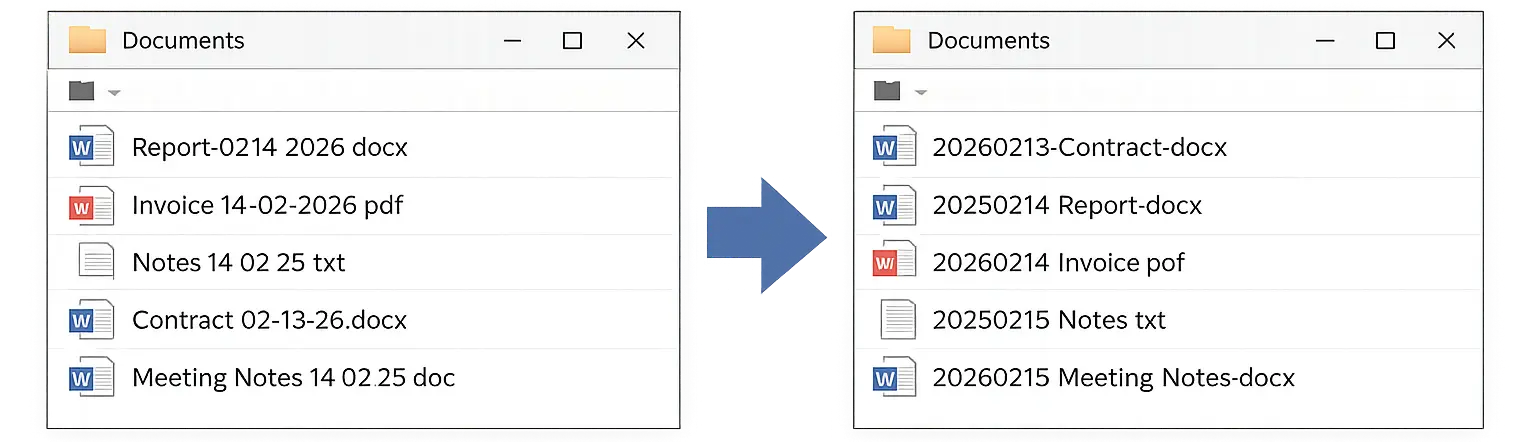
Hand-typed dates make file names inconsistent.
→ One Insert key press. Same format, whoever names the file.
Works for you. Works for your whole team.
Pick the date format you prefer: yyyyMMdd, yyyy/MM/dd, yyyy.MM.dd, or yyyy年MM月dd日. Teams can set one format for everyone.
Available on Microsoft Store. Lightweight and runs quietly in the background.
In any app—Word, Excel, Chrome—press Insert and the date appears in the right format.
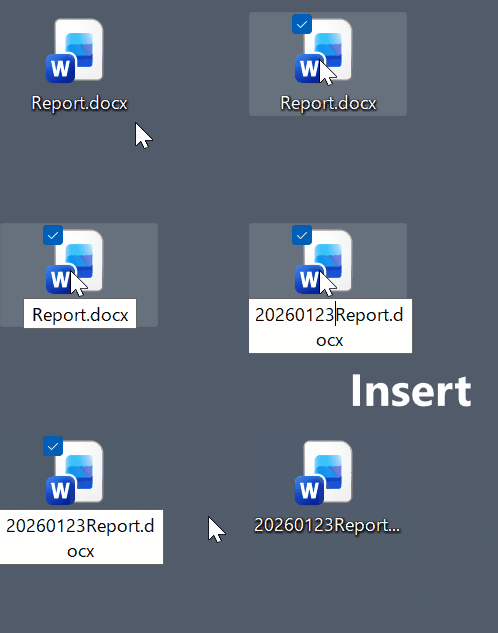
Press Insert → Date appears in the right format, instantly.
One key press replaces manual typing. That's time back for work that actually matters.
No format to remember. No accidental typos. Your brain stays on what you're writing.
Word, Excel, Chrome, Slack—same shortcut, same result. No switching between methods.
Files sort in proper date order. No more opening the wrong version or sending an outdated document.
Built by a developer with 500K+ downloads across published software.
Nothing is sent online. All data stays on your computer.
Pick the format you want. Roll it out to your team and everyone stays in sync.
| Date Format | Download (Windows) |
|---|
See how InsertDate solves real date-entry problems — in files, spreadsheets, and across teams.
Manual date typing causes every person to use a different format. Learn why yyyyMMdd is the standard and how one key press enforces it in File Explorer and Save As dialogs.
Read more →Putting the date at the front enables instant chronological sorting in File Explorer. Learn a simple three-part naming pattern that handles both sorting and version tracking.
Read more →Rules alone don't fix inconsistent date formats. When the tool applies the format automatically for everyone, no one needs to remember the standard.
Read more →Excel's Ctrl+; only works inside Excel, and its output format varies by locale. InsertDate inserts the same yyyyMMdd in every application — spreadsheets, documents, and emails alike.
Read more →Date-based task management in any text editor. Move unfinished items to tomorrow—no app, no lock-in. InsertDate makes the daily date header a single keystroke so the habit sticks.
Read more →Date formats vary by country. When MM/DD and DD/MM conventions collide, misreads happen. Here's why yyyyMMdd is the only unambiguous solution.
Read more →Officially supported: Windows 10 and Windows 11 (64-bit). InsertDate may work on older Windows versions or 32-bit systems, but these are not officially supported.
The free trial gives you full access to all features for 7 days with no restrictions. After the trial ends, you can continue using InsertDate by purchasing it. If you are signed in with the same Microsoft account, you can use InsertDate on multiple devices, subject to the Microsoft Store standard policy.
General keyboard macros and scripts (such as AutoHotkey) require complex setup before use, and their behavior can be affected by the state of the IME (input method) or the contents of the clipboard.
InsertDate is a dedicated native application built from scratch solely for date input. With an input method fundamentally rethought from the ground up, it requires no configuration and works reliably with any application using the same keypress.
Yes. InsertDate works with virtually any Windows application—Excel, Word, Outlook, Notepad, file name fields in Explorer, and more. Note: to type into an application running with Administrator privileges (e.g., an elevated Command Prompt), InsertDate must also be launched via "Run as administrator." This is a Windows security specification, not a limitation specific to InsertDate.
Yes. InsertDate currently supports the yyyyMMdd format. Each Insert key press automatically inserts today's date in that format. Additional formats are planned for future updates as paid options.
No. After your first run, InsertDate is automatically registered as a startup program and runs as a resident utility in the system tray—no manual launch needed. It uses no Windows registry, performs no network communication, and collects no personal information. It runs as a standard user process, not a Windows Service.
Right-click the InsertDate icon in the system tray and select Suspend from the menu. The Insert key reverts to its original behavior. To re-enable date input, click Suspend in the menu once more.
Open Windows Settings → Apps → Installed apps, find InsertDate, click the menu (⋯) next to it, and select Uninstall. You can also right-click InsertDate in the Start menu and choose Uninstall from there.